Import Bid Items Budget Template into CMiC
__________
Introduction
Step-by-step instructions on how to import your formatted Bid Items budget import template.
Note: Bid Items imports for budgets in CMiC will be going away April 1st, 2026. Please prepare yourself by learning how to create and import your budget via Original Budget PCI here.
Note: Project budgets are imported from an Excel template into CMiC via either the Bid Items module or Original Budget PCI type. The Budget Template - Master for creating your budget can be found on SwinNet here.
_________
Steps
1. In CMiC Project Management go to Budget Management > 02. Bid Items Import

2. Click the Import button.

3. Click the Choose File button
NOTE: The defaults shown here do not need to be changed. You want to "Allow Nulls" values
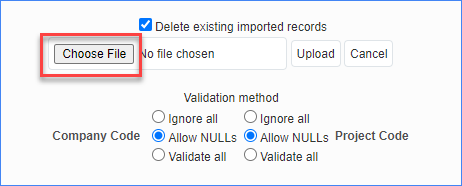
4. Locate the 'Budget_JOBNUMBER_DATE_BidImport.csv' template in your Desktop folder. Select it and click Open.

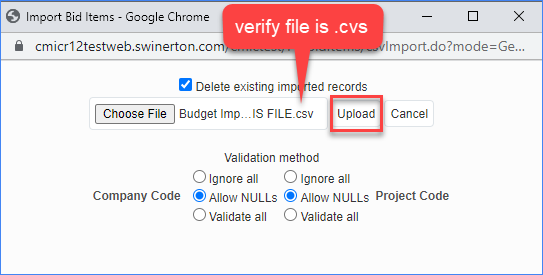
5. Verify the .csv file was selected and click the Upload button.
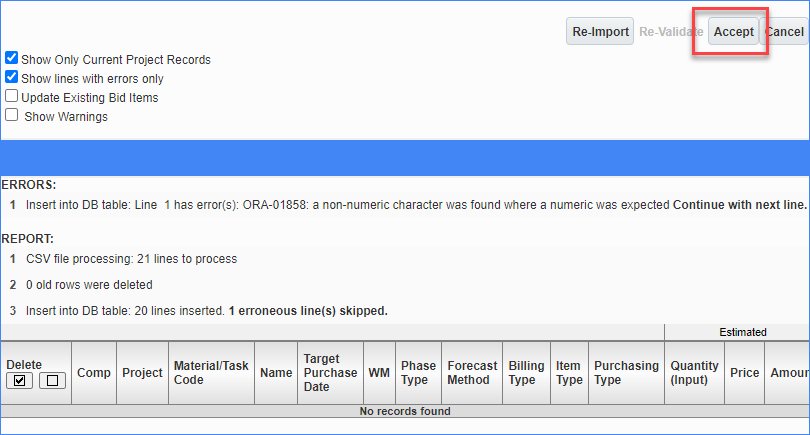
6. If the Accept button is available, then all of the information in your spreadsheet was correct! Click the Accept button.
CLICK THE ACCEPT BUTTON ONLY ONCE!!!! Multiple Clicks will result in multiplication of your budget.
7. Double check that your Cost Budget and Revenue Budget line items and totals are correct. In the Forecast Method column, make sure that any 71111 Category Codes have a Forecast Method of "P" if you are tracking Labor Productivity.
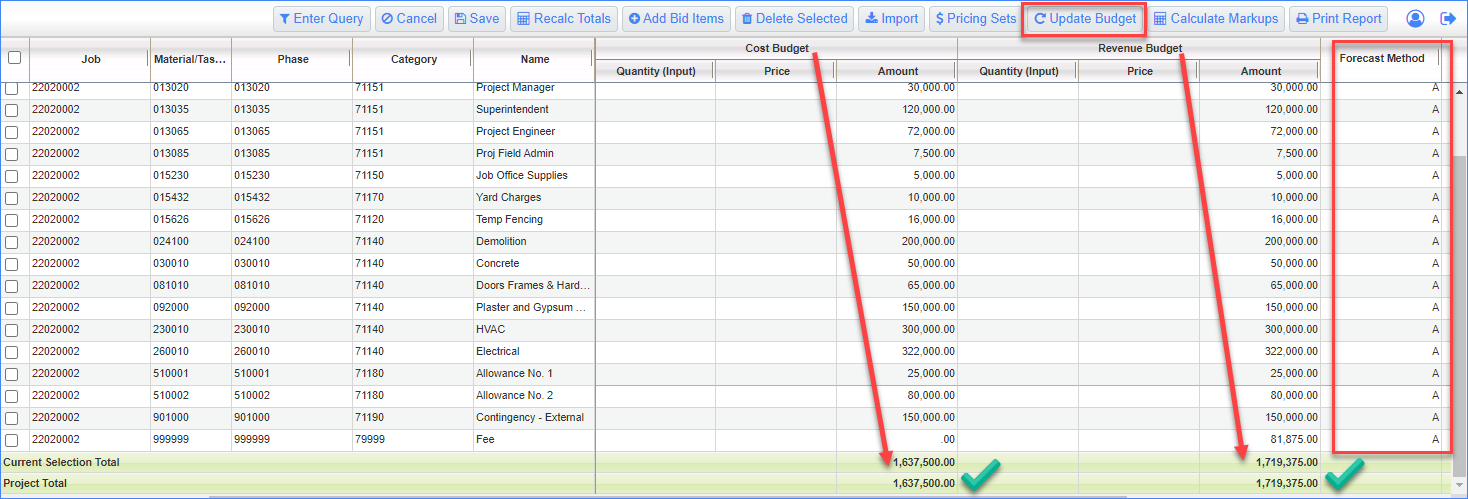
Your budget has only been imported into bid items at this time. See the Complete the Update Budget Process How-To Guide when you are ready to finalize your budget.